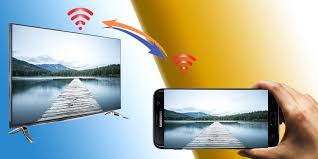
Did you know that you can easily mirror your iPhone screen to your Firestick? It’s a quick and convenient way to watch videos, browse photos, or play games on your TV screen.
But how exactly do you set it up? In this discussion, we’ll walk you through the step-by-step process of screen mirroring your iPhone to your Firestick, so you can enjoy your favorite content on a bigger and better display.
So, let’s get started and unlock the potential of your devices!
Check for Compatibility Between Your Iphone and Firestick
To determine if your iPhone is compatible with your Firestick, you can easily check for compatibility in just a few simple steps.
First, make sure that your iPhone and Firestick are connected to the same Wi-Fi network. This is crucial for successful screen mirroring.
Next, navigate to the Control Center on your iPhone by swiping down from the top-right corner of the screen on iPhone X or later models, or swiping up from the bottom of the screen on iPhone 8 or earlier models. In the Control Center, you’ll find various options, including screen mirroring.
Tap on the screen mirroring icon, and a list of available devices will appear. Look for your Firestick device in the list and select it. If your Firestick is compatible with your iPhone, it will establish a connection and start mirroring your iPhone’s screen.
If your Firestick doesn’t appear in the list, ensure that both devices are updated with the latest software versions and try again.
It’s important to note that older iPhone models may have limited compatibility with Firestick, so it’s recommended to check the compatibility requirements before attempting to mirror your screen.
Ensure That Your Devices Are Connected to the Same Wi-Fi Network
Make sure that both your iPhone and Firestick are connected to the same Wi-Fi network. This step is crucial for successful screen mirroring. When your devices are connected to the same network, they can communicate with each other and establish a secure connection.
To check the Wi-Fi network on your iPhone, go to the Settings app and tap on Wi-Fi. Make sure that the Wi-Fi slider is turned on and that your iPhone is connected to the correct network. If you aren’t connected to the same network as your Firestick, select the correct network from the list and enter the password if required.
On your Firestick, navigate to the home screen and select Settings. From there, choose Network and ensure that your Firestick is connected to the same Wi-Fi network as your iPhone. If it’s not, select the correct network and enter the password if prompted.
Having both your iPhone and Firestick connected to the same Wi-Fi network is essential to establish a stable and reliable connection for screen mirroring. Once you have confirmed that they’re on the same network, you can proceed to the next step of the setup process.
Update Your Firestick to the Latest Software Version
Now that you have ensured that your devices are connected to the same Wi-Fi network, it’s important to update your Firestick to the latest software version. Updating your Firestick ensures that you have access to the latest features, bug fixes, and security enhancements. It’s a simple process that can be done in just a few steps.
To update your Firestick, start by navigating to the Home screen. From there, scroll to the right and select ‘Settings’ from the menu. In the Settings menu, scroll down and select ‘My Fire TV’ or ‘Device.’ Next, choose ‘About’ or ‘System’ and then select ‘Check for Updates.’ Your Firestick will now check for any available updates.
If an update is found, your Firestick will automatically download and install it. This process may take a few minutes, so be patient. Once the update is complete, your Firestick will restart. You can then continue using your Firestick as usual, but now with the latest software version.
It’s important to keep your Firestick updated to ensure optimal performance and compatibility with other devices. By regularly updating your Firestick, you can enjoy the best possible experience when screen mirroring your iPhone.
Enable Screen Mirroring on Your Firestick
To enable screen mirroring on your Firestick, simply navigate to the settings menu and select the appropriate option. This feature allows you to mirror the screen of your iPhone onto your Firestick, giving you the ability to view photos, videos, and even play games on a larger screen.
To begin, make sure your Firestick and iPhone are connected to the same Wi-Fi network. Then, using your Firestick remote, navigate to the top of the home screen and select the ‘Settings’ option. From there, scroll right and choose ‘Display & Sounds’.
Next, select ‘Enable Display Mirroring’ and a prompt will appear on your Firestick screen. Now, grab your iPhone and swipe up from the bottom of the screen to access the Control Center. Tap on the ‘Screen Mirroring’ option and select your Firestick device from the list.
Once connected, your iPhone screen will be mirrored on your Firestick, allowing you to enjoy your favorite content on a larger display.
Open the Control Center on Your Iphone
Accessing the Control Center on your iPhone is a simple and convenient way to manage various settings and features. Whether you want to adjust the brightness, toggle the Wi-Fi on or off, or even screen mirror to your Firestick, the Control Center is your go-to tool.
To open the Control Center, start by unlocking your iPhone and navigating to the home screen. Next, depending on the model of your iPhone, you’ll need to swipe either from the top right corner or from the bottom of the screen. This action will reveal the Control Center, which displays a variety of icons and shortcuts.
From here, you can easily control and customize your iPhone’s settings. To screen mirror your iPhone to your Firestick, simply tap on the Screen Mirroring icon within the Control Center and select your Firestick device. It’s important to note that both your iPhone and Firestick must be connected to the same Wi-Fi network for this feature to work seamlessly.
With the Control Center at your fingertips, managing your iPhone’s settings and screen mirroring has never been easier.
Tap on the Screen Mirroring Option
After opening the Control Center on your iPhone, you can proceed to tap on the Screen Mirroring option. This option allows you to mirror your iPhone’s screen onto your Firestick, giving you the ability to enjoy your favorite content on a bigger screen.
To tap on the Screen Mirroring option, simply swipe down from the top-right corner of your iPhone’s screen to open the Control Center. Once the Control Center is open, look for the Screen Mirroring button, which resembles a rectangle with a solid triangle at the bottom. Tap on this button to access the Screen Mirroring menu.
Here, you’ll see a list of available devices that you can connect to. Locate your Firestick from the list and tap on it to establish the connection. After a few seconds, your iPhone’s screen will start mirroring on your Firestick, allowing you to view photos, videos, and even play games on the big screen.
It’s that simple! Enjoy your iPhone’s content on a larger display with the tap of a button.
Select Your Firestick Device From the Available Options
Choose your Firestick device from the list of available options. Once you have tapped on the Screen Mirroring option on your iPhone, a list of available Firestick devices will appear on your screen. This list will show all the Firestick devices that are within range and ready to connect. Look for the name of your Firestick device in the list and tap on it to select it. The selected Firestick device will then be paired with your iPhone for screen mirroring.
It is important to ensure that you select the correct Firestick device from the list. If there are multiple Firestick devices available, make sure you choose the one that corresponds to the device you want to mirror your iPhone screen to. This step is crucial in establishing a successful connection between your iPhone and the Firestick device.
If you’re unable to find your Firestick device in the list, make sure that both your iPhone and Firestick are connected to the same Wi-Fi network. Additionally, ensure that your Firestick is powered on and ready to receive the screen mirroring connection.
Once you have selected your Firestick device, you’re now ready to proceed with the screen mirroring setup process.
Enter the Airplay Passcode if Prompted
Now it’s time to enter the Airplay passcode if prompted. This step is crucial to establish a secure connection between your iPhone and Firestick.
Don’t worry if you encounter any issues during the passcode entry process, as we’ll also cover troubleshooting tips to help you resolve any connection problems that may arise.
Passcode Entry Process
To enter the Airplay passcode, simply input the given code when prompted on your device.
When you start the screen mirroring process from your iPhone to the Firestick, a passcode will appear on your TV screen. This passcode is a security measure to ensure that only authorized devices can connect to your Firestick.
On your iPhone, you’ll receive a notification asking you to enter the passcode. Simply tap on the notification, and a screen will appear prompting you to enter the passcode. Use the keyboard on your iPhone to type in the passcode and then tap on the ‘OK’ button.
Once you have entered the correct passcode, your iPhone will be successfully mirrored to your Firestick, and you can enjoy watching your favorite content on the big screen.
Troubleshooting Connection Issues
If you encounter any connection issues while attempting to mirror your iPhone to your Firestick, you may be prompted to enter the Airplay passcode. This passcode is a security measure to ensure that only authorized devices can connect and mirror content.
When prompted to enter the passcode, simply follow the on-screen instructions on your iPhone. Open the Airplay settings on your device and look for the passcode entry option. Enter the passcode provided on your Firestick screen and tap on ‘OK’ or ‘Enter’ to proceed. Make sure to enter the passcode correctly to establish a successful connection.
If you’re still experiencing connection issues even after entering the correct passcode, try restarting both your iPhone and Firestick, and then attempt the screen mirroring process again.
Start Screen Mirroring Your Iphone to Your Firestick
Now that you’ve entered the Airplay passcode, it’s time to start screen mirroring your iPhone to your Firestick.
There are a few important points to keep in mind.
First, ensure that your iPhone and Firestick are compatible with each other.
Then, make sure both devices are connected to the same Wi-Fi network.
Finally, if you encounter any issues, we’ll provide troubleshooting tips to help you resolve them.
Let’s get started!
Compatibility Between Devices
Ensure seamless compatibility between your iPhone and Firestick as you embark on the journey of screen mirroring. Before you begin, it’s crucial to confirm that both devices meet the necessary requirements.
Your iPhone should be running on iOS 9.0 or later, while your Firestick should be a second-generation device or newer. Additionally, make sure that both devices are connected to the same Wi-Fi network. Compatibility issues may arise if your iPhone and Firestick aren’t on the same network.
It’s also worth noting that certain apps may have specific compatibility requirements. For instance, some apps may only support screen mirroring on certain iPhone models or Firestick versions. To avoid any potential hiccups, it’s advisable to check the app’s compatibility information beforehand.
Connecting via Wi-Fi
To connect your iPhone to your Firestick and start screen mirroring, you’ll need to ensure they’re both connected to the same Wi-Fi network. This is a crucial step in establishing a stable connection between the two devices.
First, make sure your iPhone is connected to a Wi-Fi network by going to Settings > Wi-Fi and selecting the appropriate network.
Next, on your Firestick, navigate to Settings > Display & Sounds > Enable Display Mirroring. Your Firestick will then start searching for available devices.
On your iPhone, open the Control Center by swiping down from the top right corner of the screen. Tap on Screen Mirroring and select your Firestick from the list of available devices.
Once connected, your iPhone screen will be mirrored on your Firestick, allowing you to enjoy your favorite content on the big screen.
Troubleshooting Common Issues
Having trouble screen mirroring your iPhone to your Firestick? Let’s troubleshoot some common issues that may be preventing you from enjoying your favorite content on the big screen.
First, check that your iPhone and Firestick are connected to the same Wi-Fi network. If they’re not, connect both devices to the same network and try again.
Next, ensure that both devices are running the latest software updates. Outdated software can cause compatibility issues and prevent successful screen mirroring.
If you’re still experiencing issues, try restarting both your iPhone and Firestick. Sometimes a simple reboot can resolve technical glitches.
Additionally, make sure that AirPlay or screen mirroring is enabled on your Firestick. You can check this by going to the Firestick settings and selecting the option for screen mirroring.
Lastly, if all else fails, consider resetting your Firestick to factory settings. This can help resolve any underlying software issues that may be affecting screen mirroring.
Adjust the Screen Resolution and Display Settings on Your Firestick
To optimize your viewing experience, adjust the screen resolution and display settings on your Firestick. By doing so, you can ensure that the content you’re streaming is displayed in the best possible quality on your TV.
To adjust the screen resolution, go to the Settings menu on your Firestick and select the Display & Sounds option. From there, choose the Display option and then select the Resolution option. Here, you can choose the resolution that works best for your TV. Keep in mind that higher resolutions may require more bandwidth and a stronger internet connection.
Additionally, you can also adjust other display settings such as the display mode, color depth, and overscan. These settings allow you to customize the visual appearance of the content on your TV screen.
Experiment with different settings to find the combination that provides the best viewing experience for you. Remember to save your changes before exiting the settings menu.
Frequently Asked Questions
To check if your iPhone is compatible with Firestick for screen mirroring, go to the App Store and search for the “Fire TV” app. Download it and follow the instructions to connect your iPhone to the Firestick.
Yes, you can mirror your iPhone screen to Firestick even if they are connected to different Wi-Fi networks. Just ensure both devices are on the same Wi-Fi network and follow the screen mirroring instructions.
If your Firestick is not updated to the latest software version, you should go to the settings menu and select “My Fire TV.” From there, choose “About” and then “Check for Updates” to ensure you have the latest software.
Conclusion
In conclusion, screen mirroring your iPhone to your Firestick is a quick and easy process. By ensuring compatibility, connecting to the same Wi-Fi network, updating your Firestick, and enabling screen mirroring, you can easily mirror your iPhone’s screen to your Firestick.
Simply open the Control Center on your iPhone, select your Firestick device, enter the Airplay passcode if prompted, and start screen mirroring.
Don’t forget to adjust the screen resolution and display settings on your Firestick for the best viewing experience.